AEF TECHNOLOGY UPGRADE
Training & Support
Your source for trainings, checklists, links, and more.
Training & How-to Video Library
Videos to show you how to navigate the new platforms.

Platform Hub Overview Video
Watch: How to Contribute to a Fund
Support Resources
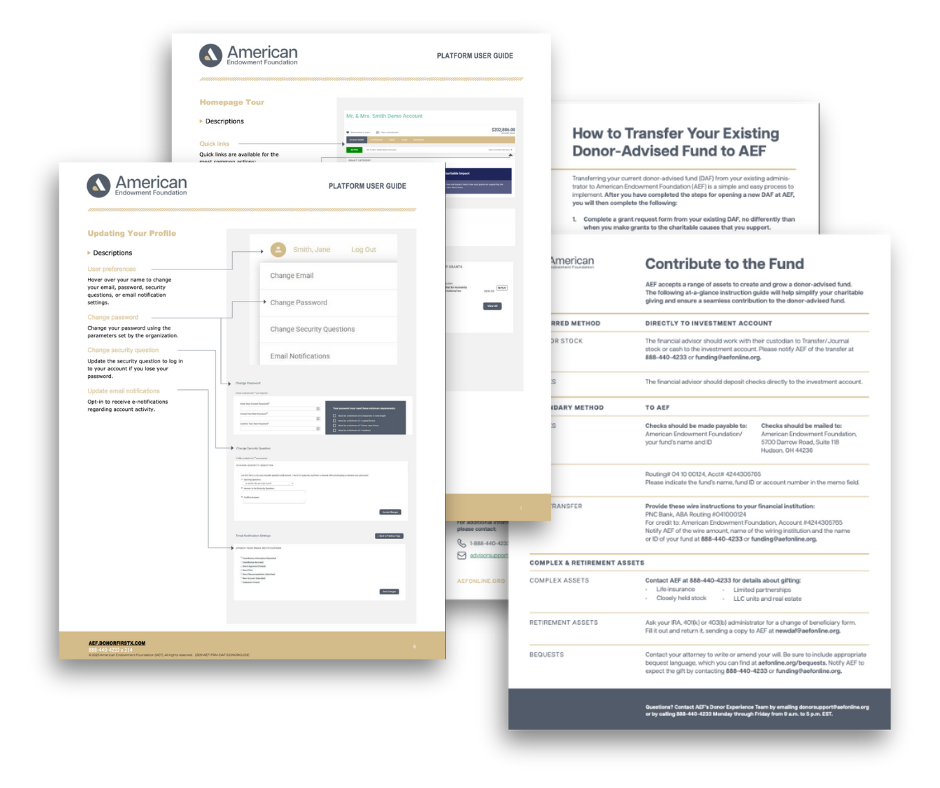
Resources
Mark your progress and know what’s ahead.
How to Access Your Grant Documents in DonorCentral
Q. How do I view and download a grant letter in DonorCentral?
1. Visit DonorCentral and supply your credentials as usual.
2. From the DonorCentral home page, click on the Grants tab.
3. From the approved list of grants, click on the three dots next to the grant payee name and select View Detail.
4. The grant letter PDF link is shown in blue. Single-click on the grant letter PDF link or click on the three dots and select Download file.
5. The file will automatically be downloaded to the device’s download location
Q. How do I generate a list of grants paid within a specific date range?
1. Visit DonorCentral and login.
2. From the DonorCentral home page, click on the Funds tab.
3. Click in the field under the Fund Details header and select a range
4. Click on the Grants Paid amount (shown in blue) and scroll down.
5. You will receive an on-screen list of paid grants. Use the column button to adjust the level of report detail and click Apply Changes.
6. Click on the Export button, and the file will automatically be exported to the device’s Download location.
Q. How do I download a statement in DonorCentral?
1. Visit DonorCentral and login.
2. From the DonorCentral home page, click on the Funds tab.
3. Click on the View Statement button.
4. Select the statement period, then click on the Select button.
5. Click on the View button.
6. The file will automatically be downloaded to the device’s download location.
AEF Forms & Documents
Looking for AEF policies, change forms, or additional learning resources? Visit the AEF Forms & Docs page to download the documents you need.
Tips & Highlights
Additional things that are good to know.
Charity Search
When you’re ready to make a grant, you can search by name of charity or EIN. If this is a charity not in the system, you’ll also have the option to add in a charity manually to be vetted.
When entering your information, the form fields with red dots are required fields.
Save & Update Grant Recommendations
Did you know you can start a grant recommendation and finish it later? Click the Save for Later option before you Submit a Grant. You can revisit the recommendation by going to the “Recommend a Grant” page.
The saved grant recommendation will be found under the search bar of “Find a Charity.”
Glossary & Definitions
Did you know there are wording differences between how AEF defines certain roles, and how Ren defines roles? When using the platform, role names are as follows:
- Grant Advisor = The person specifically empowered to recommend grants.
- Donor = Any contributor to the fund.
- Money Manager = A financial advisor who works with donors and grant advisors.
Punctuation & Special Characters
Did you know you should avoid using special characters when filling out your digital forms?
Avoid using quotation marks, ampersands, and other special characters when filling out form fields to ensure the forms aren’t marked as inaccurate.